Silvia Rosenthal Tolisano-German born; Global Citizen
globallyconnectedlearning.com
Blog:www.langwitches.org/blog
Twitter: langwitches
Skype: langwitches
http://langwitches.wikispaces.com/
Rushton Hurley
Next Vista for Learning at NextVista.org
The online Library of Video Resources by and for Teachers and Learners
www.nextvista.org
rh@nextvista.org
Mrs. Yollis-Classroom Teachers
http://yollisclassblog.blogspot.com/
Web Tools for Kids
http://weewebwonders.pbworks.com/
Saturday, February 25, 2012

Digital Bloom's
http://youtu.be/tL7enV-gCr0?hd=1
I am learning how to embed a YouTube video into my blog! This video is about 2 minutes long discussing Benjamin Bloom's critical thinking skills placed in a triangle with aligned digital tools and programs. Check it out!
I am learning how to embed a YouTube video into my blog! This video is about 2 minutes long discussing Benjamin Bloom's critical thinking skills placed in a triangle with aligned digital tools and programs. Check it out!
Newly Revised Bloom's Poster for Elementary Teachers
http://blog.learningtoday.com/blog/bid/22740/Bloom-s-Taxonomy-Poster-for-Elementary-Teachers
Download The Blooming Butterfly poster as a pdf.

The Blooming Butterfly poster was designed by the Learning Today product development team as a tribute to Bloom and Anderson and to the educators all over the world that continue to implement their vision. We hope that it will serve as a visual reminder for teachers as they continue to guide students to become better thinkers, just as Bloom imagined many years ago!
Here's another poster to help get you thinking about how you can apply Bloom's higher-order thinking skills in your classroom. This poster shows the segments of an orange with each segment relating to a thinking skill and some helpful verbs to serve as prompts.
http://blog.learningtoday.com/blog/bid/23376/Blooming-Orange-Bloom-s-Taxonomy-Helpful-Verbs-Poster

Download The Blooming Butterfly poster as a pdf.

The Blooming Butterfly poster was designed by the Learning Today product development team as a tribute to Bloom and Anderson and to the educators all over the world that continue to implement their vision. We hope that it will serve as a visual reminder for teachers as they continue to guide students to become better thinkers, just as Bloom imagined many years ago!
Here's another poster to help get you thinking about how you can apply Bloom's higher-order thinking skills in your classroom. This poster shows the segments of an orange with each segment relating to a thinking skill and some helpful verbs to serve as prompts.
http://blog.learningtoday.com/blog/bid/23376/Blooming-Orange-Bloom-s-Taxonomy-Helpful-Verbs-Poster
Download the pdf's here:
Friday, February 24, 2012
iMovie Presenting Content and Content Blog
Start a new video project
- In iMovie, choose File > New Project.The File menu appears in a light gray bar across the top of your computer screen.
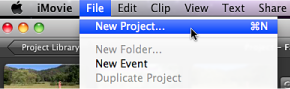 iMovie is a great presentation tool. Looking at the matrix, this tool is easy to access. Personal voice overs and embedded videos using iMovie would help students access content. This tool is for MAC users and the company has a great track record! Reliability is solid.OEST STANDARDS:1b,2a,2bTASC-Professional Learning
Make Propoganda
http://www.makepropaganda.com
This is a Windows platform only. The tutorial I watched on line presents this program as an easy tool to create your own podcast.

Tuesday, February 21, 2012
Assignment 3A Google Groups Communication Blog
What is it?
Google Groups is a free, online
service that helps groups of people easily share information and communicate
effectively. Groups are public or private places where members share files,
post ideas, and conduct discussions either on the web or via email. All emails
sent to the group are archived for future reference and are easily searchable,
either privately or publicly.
Why use it?
Students can use Google Groups
to:
• Extend class
discussions online.
• Share ideas, store
documents, and organize web
resources as they work on a team
project.
• Create a private group
for school clubs or sports teams
to share the latest news,
announcements, and pictures.
Teachers can use Google Groups
to:
• Make class handouts,
reading materials, assignments, and web links available to students and their
parents. (A Google Group could even be used to manage an online class!)
• Send email
announcements to parents.
• Centralize resources
and communication for grade levels,
departments, or professional
learning communities.
Instructional Ideas
Elementary. Set
up a parent-child book club using Google Groups. Students and parents read the
book together at home and then respond to the discussion questions you post to
the group.
Middle School. Create
an online study group. Each day assign one student to post class notes as a new
page in the Group. Then ask students to respond to reflection questions in the
discussion area. Use the “Rate this Post” feature for participation grades or
peer review.
High School. As
part of a career-exploration project, have students join a publicly available
Group related to their field of interest. After reading through the discussion
archives, have each student post appropriate career questions to the groups.
OEST STANDARDS: 1(b), 2(a,b,d), 3 (a,b,c,d), 4(b), 5(b)
OEST STANDARDS: 1(b), 2(a,b,d), 3 (a,b,c,d), 4(b), 5(b)
om other
members.
Monday, February 20, 2012
I Won a Kindle Fire
I never win anything, but today my luck changed.... I won a Kindle Fire in an electronic raffle! I am attending the Instructional Technology Strategies Conference held at the Sheraton Airport Hotel Sunday-Tuesday and each time you visited a vendor they signed you in on their iPads and it sent an electronic raffle ticket to some database in the clouds. At lunch they clicked a button that said "choose a winner" and my name came up!
My head is spinning with so many resources that supports technology integration in the classroom. Can't wait to share with my new classmates.

My head is spinning with so many resources that supports technology integration in the classroom. Can't wait to share with my new classmates.
Sunday, February 19, 2012
Blogs, Wikis, Podcasts Communication Tool #3
Wikis
Click the link called wikis. It will take you to our district web page. Click on the link in the top red bar called Staff and then click on the link for Wiki Collaboration. I will be showing how we are using wikis within our Leadership Team and within our schools. Wikis are like a public bulletin board. We use it to post resources, current data and live links to all sorts of things. Staff can leave comments. I am experimenting with a School Improvement wiki page so staff can return over and over again and find information.
OEST STANDARDS: 1(b), 2(a,b,d), 3 (a,b,c,d), 4(b), 5(b)
I found an interesting book on Amazon from Heinemann, which is one of my favorite curriculum resources.

Click the link called wikis. It will take you to our district web page. Click on the link in the top red bar called Staff and then click on the link for Wiki Collaboration. I will be showing how we are using wikis within our Leadership Team and within our schools. Wikis are like a public bulletin board. We use it to post resources, current data and live links to all sorts of things. Staff can leave comments. I am experimenting with a School Improvement wiki page so staff can return over and over again and find information.
OEST STANDARDS: 1(b), 2(a,b,d), 3 (a,b,c,d), 4(b), 5(b)
I found an interesting book on Amazon from Heinemann, which is one of my favorite curriculum resources.
Professional Development Using Google Docs
February 17 was a big staff development day! Over 200 teachers used Google docs (groups.google.com) to individually enter work sample scores in math, shared their results with their table group members and discussed and reviewed their groups inter-rater reliability when looking at the scores. A wonderful way to calibrate across the district! We spent a morning learning the new math problem solving rubric, Common Core State Standards mathematical practices and analyzed student work. Teachers were immersed in math in the morning and writing in the afternoon. A great day of learning and collaborating!


Google docs is a great way to have staff complete an evaluation of the workshop too. Right on the spot teachers can give their input regarding their key learnings, feedback on what went well and gather suggestions for improvement while fresh in everyone's mind. The results are instantly tabulated and can be reviewed immediately.


Saturday, February 11, 2012
Doodle

Doodle is a great way to get confirmations from people for when they are available for an event. You can send a poll or an invite, so it is a great pre-planner/organizer. Once everyone has confirmed the date and time a meeting invitation can be sent. Very effective and very efficient. I'm going to experiment more with doodle before sending out an email asking for information or a meeting invitation with just one time offered for the meeting and have everyone either confirm or decline.
I want to become more proficient with Google.docs. Right now I tend to think of Google.docs after I've created something, instead of thinking of it first.
Friday, February 3, 2012
Tools Continued

With more cuts to our district and more responsibilities being added to everyone's plate, my Administrative Assistant and I find we need to meet daily to identify our priorities as they seem to be ever changing by the hour. Using the meeting/appointment/calendar feature in Outlook is a great tool for setting up meeting times. This feature saves time, phone calls, emails and is very effective for setting a common meeting time for a group of people. I do need to slow down...and make sure I select AM instead of PM for meetings I schedule. :) Luckily, one person caught my mistake and wanted to verify! She said she had to verify as she wouldn't put it past me to work everyone well into the night. Not sure that is a compliment. The Technology Standard that best fits the tools I've been focusing on this week would fall into the category of Modeling Digital-Age Work and Learning and also Engage in Professional Growth and Leadership. (Google docs, wikis and Outlook Calendar)
Subscribe to:
Comments (Atom)